
DriveWorks Technology Examples
Understanding the technology that drives software solutions helps you understand how your business could benefit from using it. We’ve built a set of DriveWorks Technology Examples that explore the core technologies behind our software, enabling you to take a deep dive into DriveWorks. Our series of technology examples, including the Automating CAD and Drawings example, go behind the scenes to share the powerful technology that powers our design automation and CPQ software.
What are DriveWorks Technology Examples?
DriveWorks Technology Examples are DriveWorks projects built to explain each of the core technologies in DriveWorks.
Each example shows you the features and performance that thousands of DriveWorks users rely on every day. Our technology examples enable you to see the building blocks that make up our technology and provide inspiration for how you could build a DriveWorks solution tailored to the unique needs of your business.
See DriveWorks Technology Examples in action
DriveWorks Technology Examples are not your typical software demos.
They are designed to take you beyond the surface-level features and functionalities so you can experience the technology that makes DriveWorks software successful. By exploring our technology examples, you get a behind-the-scenes look at the architecture and rules that power our software, showcasing how our cutting-edge technology delivers results for businesses of all sizes, across all industries.
There’s a range of different technology examples so whether you want to learn more about our form design technology or get hands-on with our 3D visualization solutions, there’s a technology example for you.
Spotlight on: DriveWorks Automating CAD & Drawings Technology Example
Automating CAD & drawings with DriveWorks advanced SOLIDWORKS® design automation
Automating repetitive, time-consuming SOLIDWORKS tasks enables you to create more designs in less time, reduces errors, and speeds up design cycles. It also frees up design engineers to focus on higher value design work.
DriveWorks includes a range of powerful features for advanced SOLIDWORKS design automation. Set up once then run your DriveWorks configurator over and over again to generate new sets of same but different SOLIDWORKS files.
Take a look through the DriveWorks Automating CAD & Drawings Technology Example to explore the technology behind DriveWorks design automation.
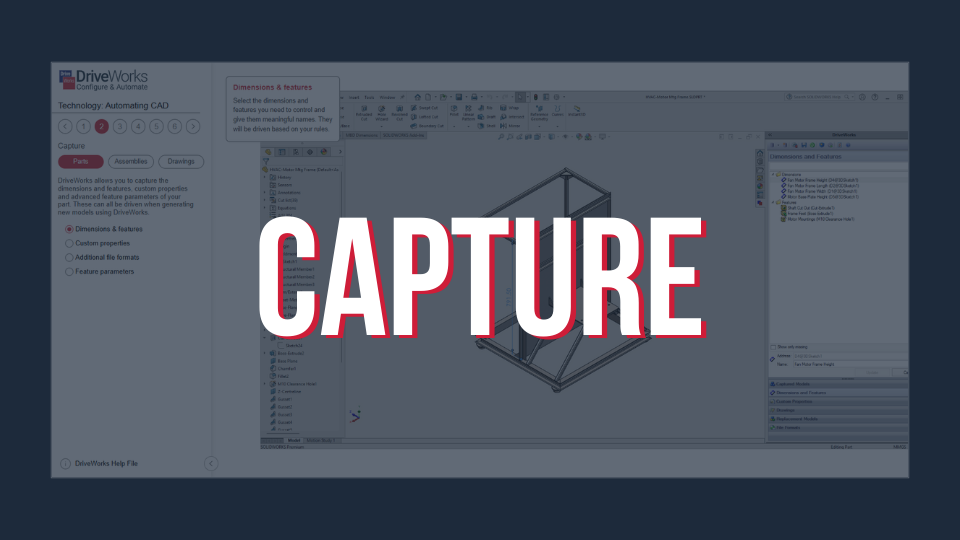
Capture parts, assemblies, and drawings
DriveWorks enables you to capture the dimensions and features, custom properties, and advanced feature parameters of your parts. They can all be automatically driven when generating new models using DriveWorks.
You can also capture sheets & views, annotations, file formats, and other parameters to automatically generate your SOLIDWORKS drawings.
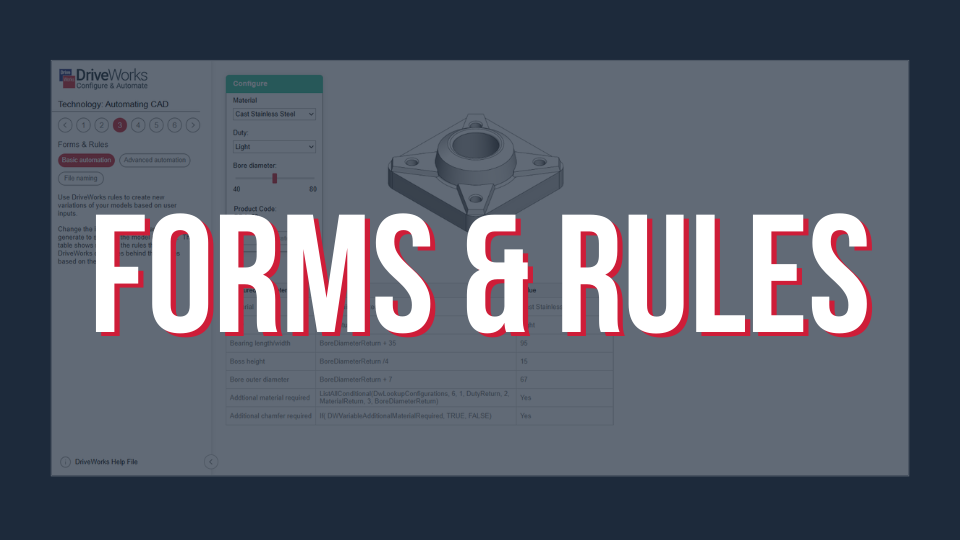
Forms & rules
Use DriveWorks rules to create new variations of your models based on user inputs.
Your DriveWorks rules control how DriveWorks handles your new models. You have complete control over the names and locations for your new files. If a file already exists, DriveWorks will reuse it. Using rules in DriveWorks, you decide how your parts are numbered.
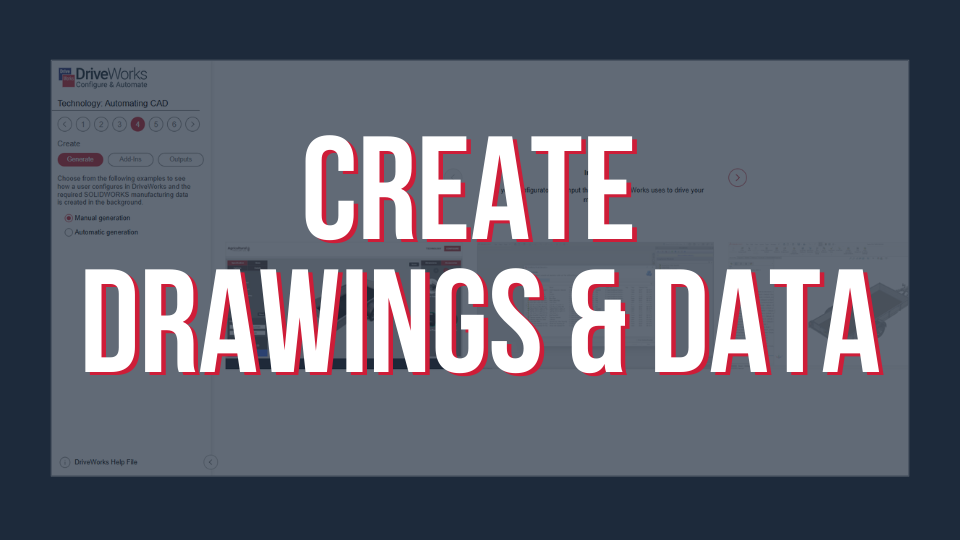
Create drawings & data
Automatically create SOLIDWORKS manufacturing data, alongside your drawings.
DriveWorks works with many additional SOLIDWORKS Add-ins, including SOLIDWORKS CAM, SOLIDWORKS MBD, and SOLIDWORKS PDM Pro. DriveWorks can automatically export a range of data out of SOLIDWORKS for use elsewhere in your company systems.
DriveWorks can automatically export a range of SOLIDWORKS data, as CAD outputs including STLs, DXFs, and PDFs. Text or CSV outputs can also be exported for use in other company systems, such as ERP. This can be used to export BOMs, cut lists, hole tables, etc.
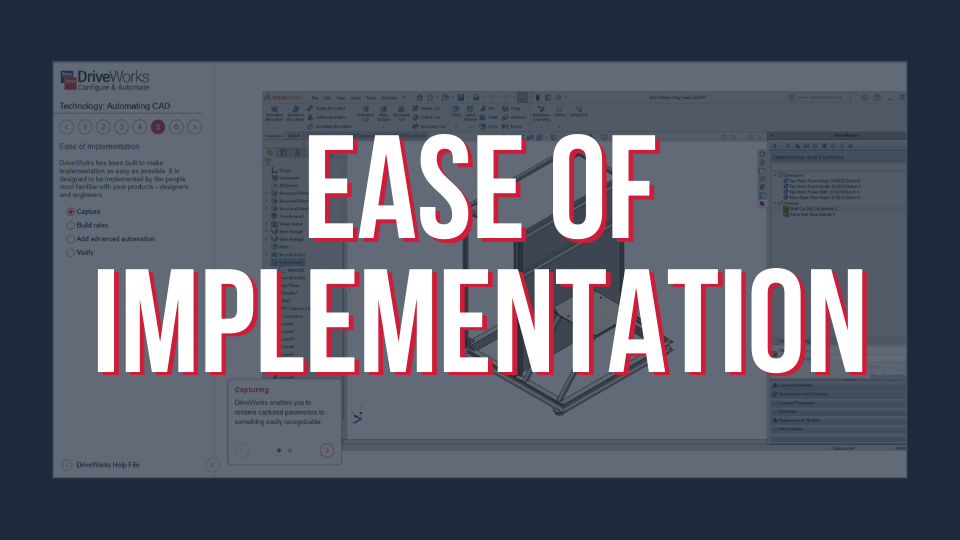
Ease of implementation
DriveWorks has been built to make implementation as easy as possible. It is designed to be implemented by the people most familiar with your products – your designers and engineers, without the need for complex programming.
DriveWorks’ Model Insight tool can run alongside your model generation, allowing you to visualise the steps DriveWorks takes to create your models and diagnose any issues. To find out more about Model Insight and the other tools available in DriveWorks, explore DriveWorks Reporting Technology.
Explore what else DriveWorks can do
Automating CAD & drawings is just one of the core technologies that make up DriveWorks software.
See what else you can do with DriveWorks by exploring all of the DriveWorks Technology Examples.
Rules
See how you can use DriveWorks to create an intelligent rules based design automation and sales configurator solution that meets your specific needs.
Workflow
Design an automated workflow to meet your company standards and procedures. Full audit trail with reports and feedback. Control users and group security, permissions and triggered actions.
Integration
Learn more about the different ways DriveWorks handles, shares and re-uses data to provide seamless integration with other company systems.
Forms
The DriveWorks Form Designer makes it easy to create a custom user interface (UI) that matches your company branding and creates a great user experience.
3D Visualization
Create interactive online 3D configurators. See how you can use DriveWorks technology to let customers see their custom products in 3D and view the effects of their design changes immediately.
Documents
Documents are one of the main outputs of a configurator. Automatically produce sales and manufacturing documentation such as Quotes, BOMs and much more.